Managing your Workload
VettingGateway uses tasks to help you better handle your vetting workload; tasks are automatically generated to notify you of actions that need to be taken on applicant profiles, and are colour-coded to make it easy to identify high-priority tasks.
Tasks can be found in two main locations in VettingGateway: On the applicants profile, and the outstanding tasks page.
Profile tasks
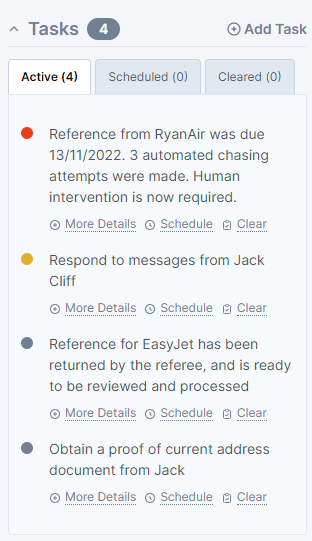
Applicant profile tasks are located on the left-hand side of every profile, in the Tasks section. Profile tasks will be ordered based on priority, with high priority tasks at the top, and low priority tasks at the bottom.
For example, if a new reference has been received, that will be considered a high priority task and will appear near the top of the task list.
Note
You can use the tabs at the top of this panel to view your active, scheduled, and cleared tasks. Tasks will automatically move into one of these three tabs depending on their status.
Managing tasks
When viewing the Tasks section of an applicant profile, you will see three options beneath each task:
- More Details — expands the task to reveal any additional information.
- Schedule — hides the task until a specified criteria has been met, e.g. a certain date/time, or when another task is completed. You can also use this to assign the task to another team or user.
- Clear — immediately moves the task to the Cleared tab of the Tasks section. If required, you can go to the Cleared tab and click Revert on the task to move it back into the Active tab.
Adding a task
If you need to add your own task, you can do so by clicking the Add Task button just above the task list on the applicant's profile. This will then prompt you to select a Task Category, Task Description, and Task Priority. These three fields must be completed before the task can be created.
Outstanding tasks
You can view all outstanding tasks by clicking on Outstanding tasks on your dashboard, or clicking the Tasks button in your side menu.
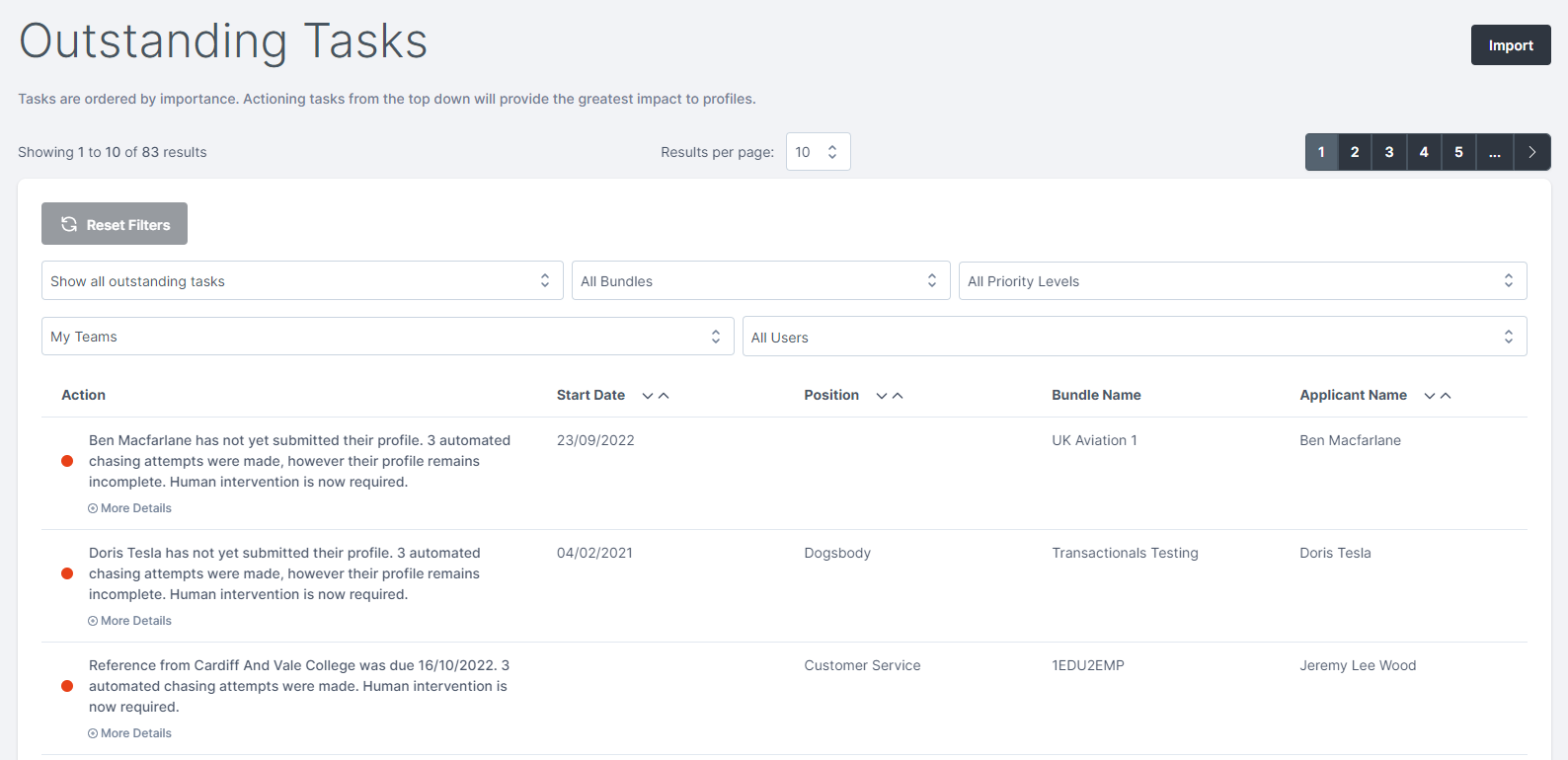
This page displays all currently outstanding tasks ordered by importance, with the highest priority tasks at the top. Clicking on any of the tasks on this page will take you to the relevant applicant profile so that you may action the task.
You can use the filters at the top of the page to narrow down the results if you are looking to address specific types of tasks for instance.